
The Google Roads API: Map matching, speed limits and more
Learn how the Google Roads API works, including map matching, snapped paths and speed limits, plus real-world use cases for GPS and routing apps.


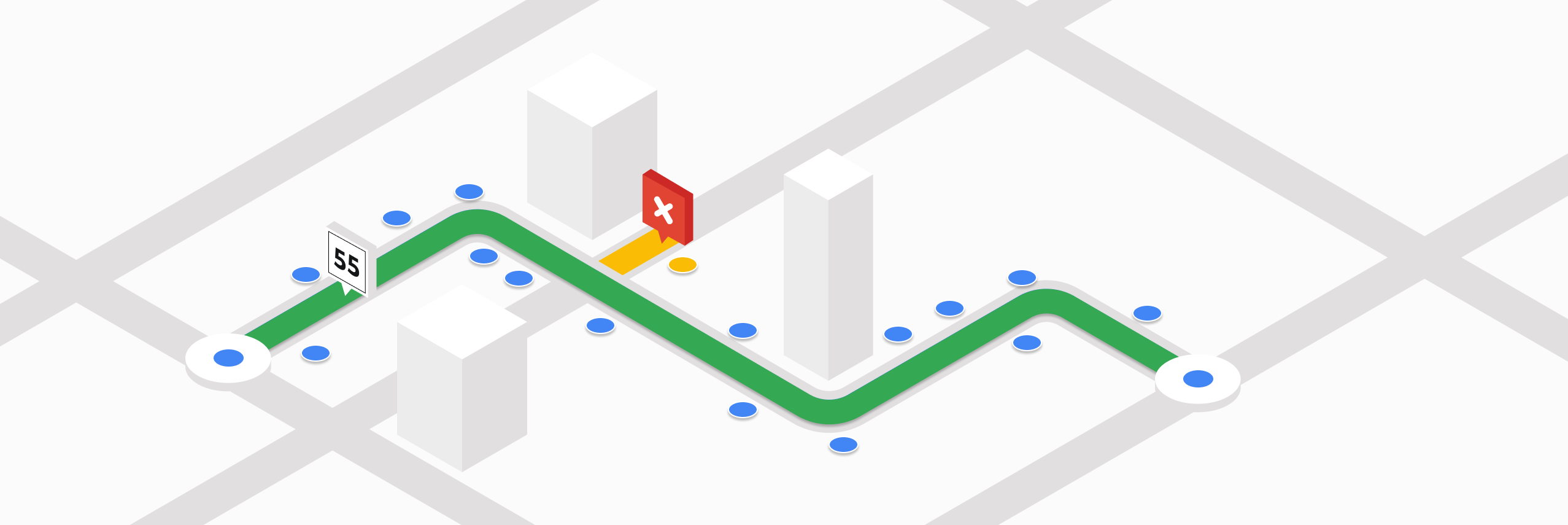
Most Google Maps APIs help you plan where to go. For example, the Google Routes API finds the fastest route between points, and the Google Maps Route Optimization API plans efficient routes for multiple vehicles. The Google Roads API on the other hand, tells you where you’ve actually been. It helps developers clean up GPS traces by snapping them to real roads, so you can see exactly where a vehicle actually went.
Part 1: The Google Roads API: Map matching, speed limits and more (this article)
Part 2: Clean up noisy GPS data with the Google Snap to Road API
Part 3: How to get the speed limit in Google Maps
In this tutorial series, I’ll walk you through the main endpoints of the Google Roads API - how they work, what they’re used for, and how much they cost. At the end, we'll bring it all together by building an interactive tool that uses the Roads API to match a series of GPS points to the road network.


What is the Google Roads API?
The Google Roads API snaps raw GPS points to real roads, making location data accurate, readable, and useful for routing, analytics, and tracking applications. It consists of three separate APIs:
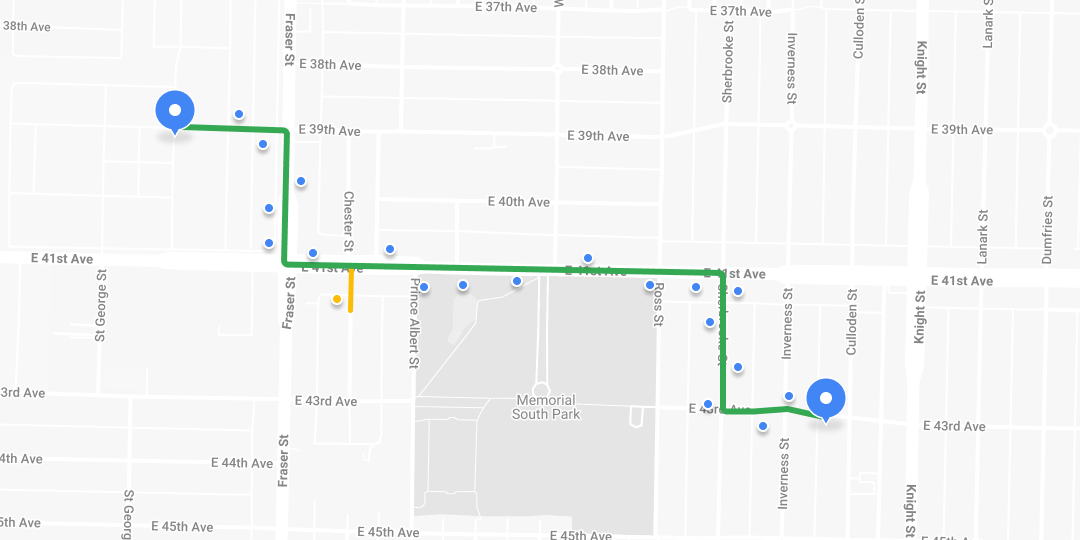
- Snap to Roads takes raw latitude and longitude coordinates and aligns them to the nearest roads in a processed called "map matching". It accepts up to 100 GPS points from a recorded route and returns those points adjusted to match the most likely roads traveled. You can also enable interpolation to generate a smoother path that closely follows the shape of the road network.
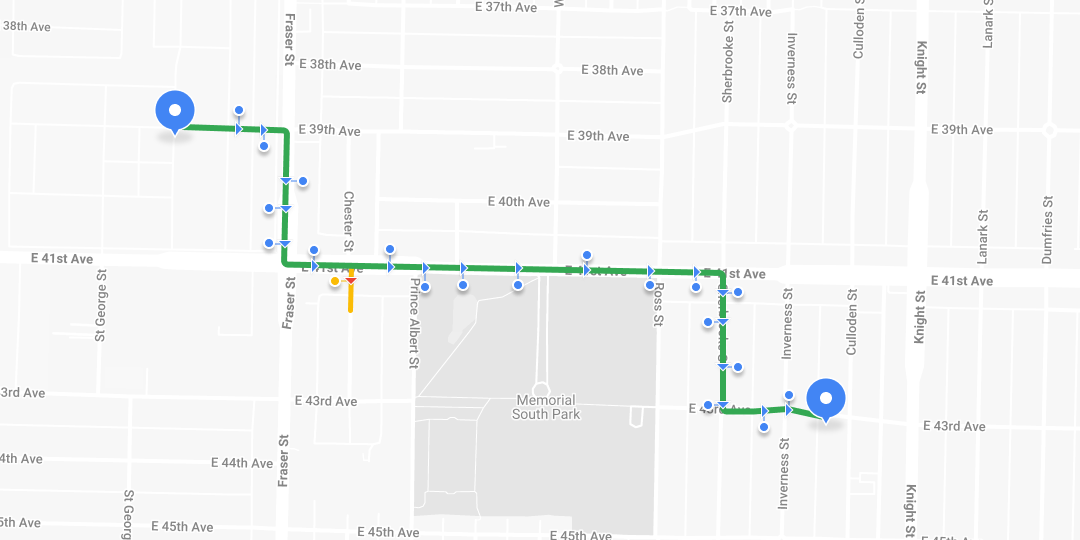
- The Nearest Roads endpoint accepts up to 100 individual GPS coordinates and returns the closest road segment for each. It does not attempt to infer the driver's route or direction of travel - it simply identifies the nearest road to each point.
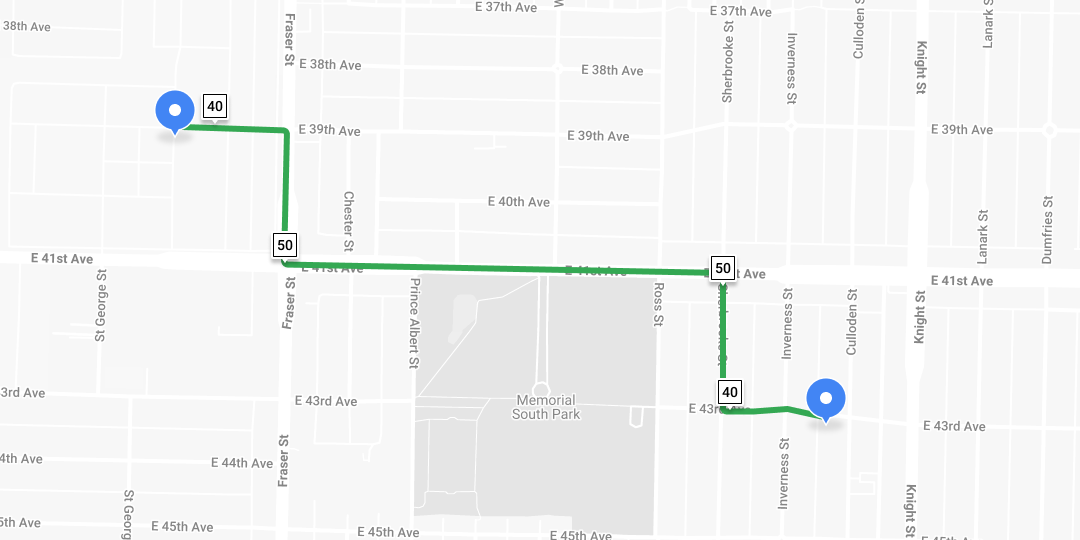
- Speed Limits returns the posted speed limit for a specific road segment (requires a Google Maps Asset Tracking license).
How are GPS points collected?
Most companies collect GPS data using a driver app that emits “breadcrumbs” or location updates at regular intervals (see my tutorial on live driver tracking in Swift using iOS geolocation). All modern smartphones include a GPS chip, more accurately called a GNSS receiver, that listens to signals from navigation satellites and calculates your exact location by triangulating data from multiple satellites in orbit.
These GPS points are timestamped and stored on a server, making it easy to access later. This setup allows you to show both the driver’s real time location and their full trip history on a map.

Because of building interference and atmospheric effects, GPS points along a route can appear uneven or “jittery.” The Roads API solves this by snapping those points to the actual road network.
Google Roads API use cases
The Roads API is especially useful when you need to analyze historical location data. It's commonly used by:
Ride hailing and mobility
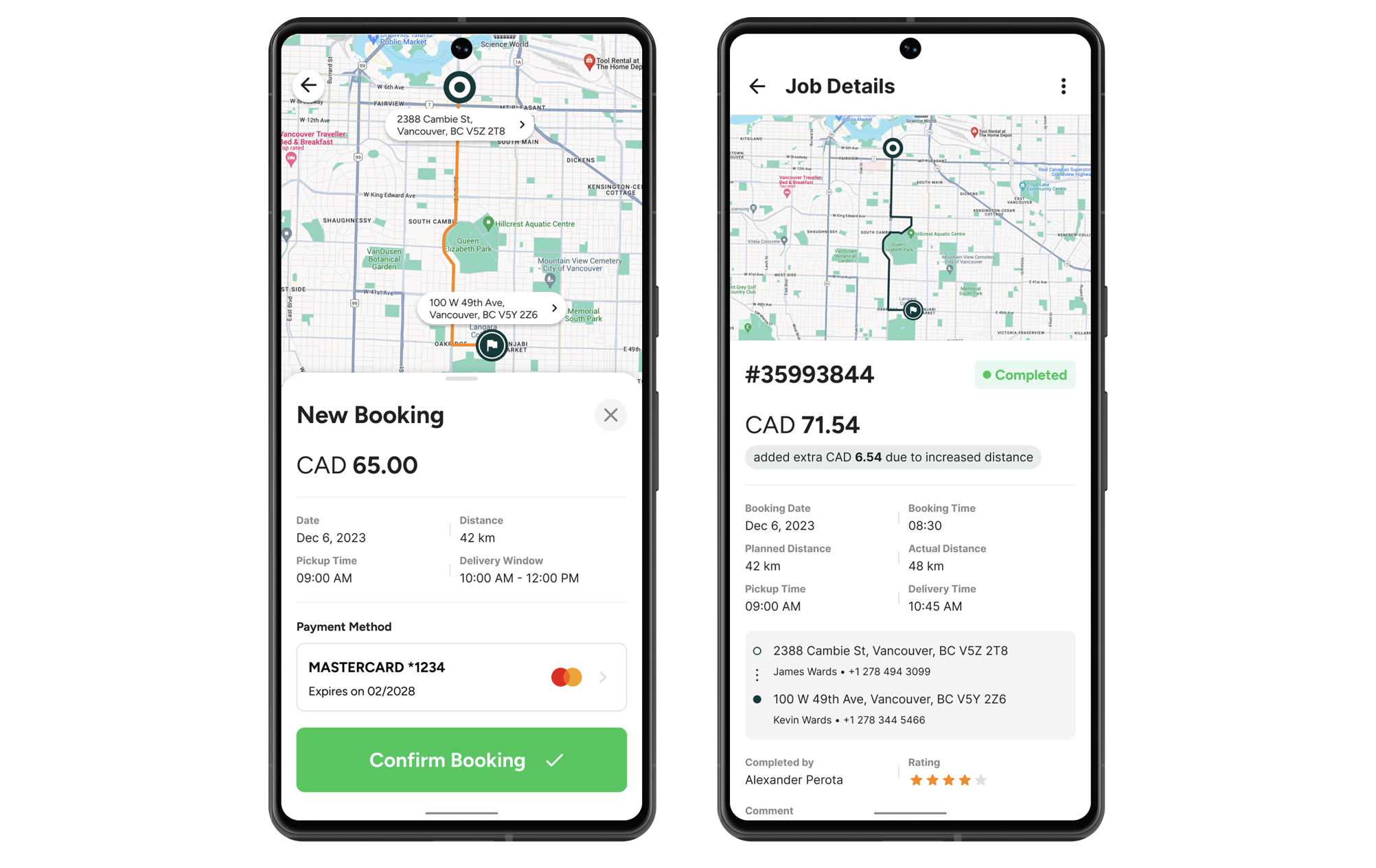
Ride share companies like Uber or Lyft often charge passengers based on the actual distance traveled. While they might use the Routes API to give an upfront fare estimate, the final charge is typically based on the real route the driver took. To calculate that, they use the Roads API to snap the GPS trace of the trip to the road network, and then measure the actual distance driven. This distance is then multiplied by a standard rate (adjusted for time of day, surge pricing etc) to determine the final fare.
Logistics and fleet tracking
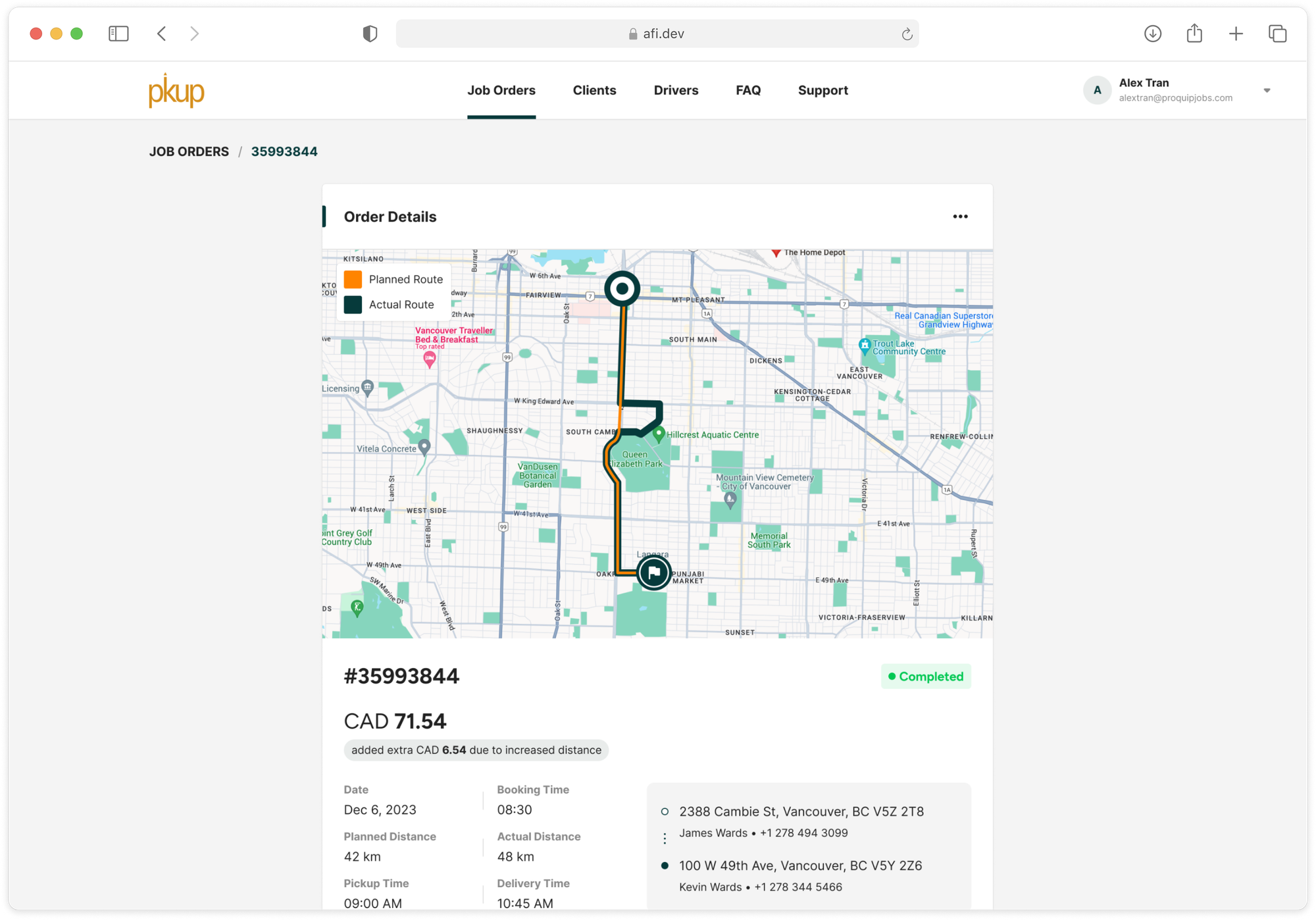
For last mile delivery and logistics providers, fuel is often their single biggest cost. This makes route efficiency critical. As a result, these companies frequently compare the planned route with the route the driver actually took. This is where the Roads API is useful. It lets them snap the driver’s GPS trace to real roads and overlay it on the planned route from a route optimization API like GMPRO. Any large differences between the two become easy to spot and serves as a starting point for understanding why the driver chose a different route from what was planned.
Insurance and telematics
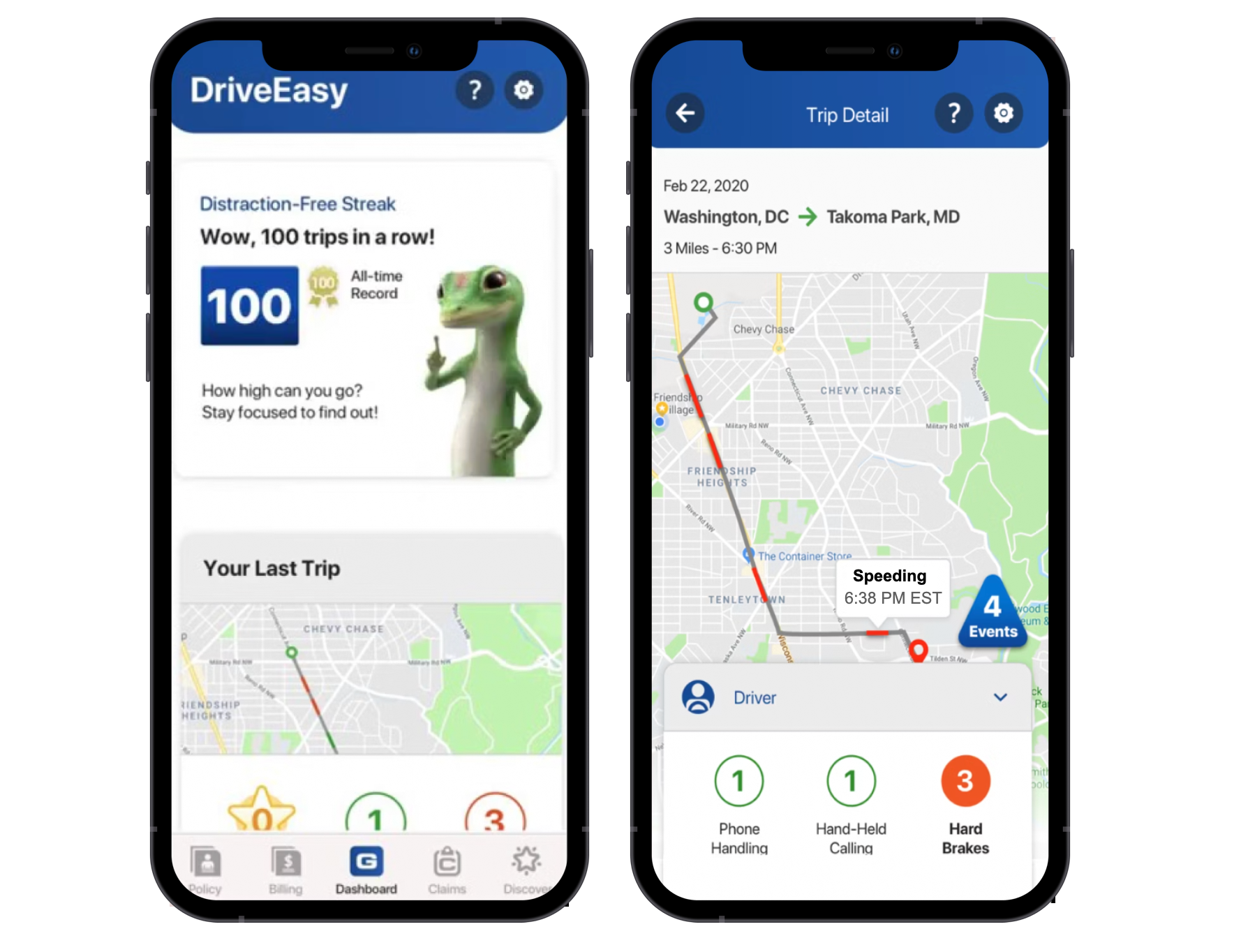
Many insurance companies now use mobile apps and telematics to monitor driver behavior, offer personalized pricing, and promote safer driving. Programs like Allstate Drivewise, Progressive Snapshot and Geico DriveEasy collect GPS location pings during trips and store them on their servers. They then use the Snap to Roads endpoint to align those points with the actual road network, and the Speed Limits endpoint to check whether the driver was exceeding the posted speed limit.
Google Roads API examples
Here's what a typical Roads API call looks like:
With the Snap to Roads endpoint:
Endpoint: GET
https://roads.googleapis.com/v1/snapToRoads?key={YOUR_API_KEY}
&path={PATH}
&interpolate={INTERPOLATE}
{YOUR_API_KEY} is the is your Google Maps API key with the Roads API enabled.
The {PATH} parameter is used to specify the set of GPS points you want to snap to the road network. It accepts a list of latitude/longitude pairs, where each pair is separated by a comma, and each coordinate pair is separated from the next by a pipe character ("|") e.g. path=60.170880,24.942795|60.170879,24.94279. There is a 100 point per request limit, so you'll need to make multiple API calls to handle longer routes.
{INTERPOLATE} specifies whether the path should be interpolated to follow the full geometry of the road. When set to true, the response adds additional points between your original GPS coordinates, creating a smoother path that accurately follows curves, corners, and tunnels. Interpolated paths usually contain more points than the original input, and is useful if you want to draw the route taken by the driver on a map. Defaults to false.
Endpoint: GET
Response
{
    "snappedPoints": [
        {
            "location": {
                "latitude": 1.3067466801461456,
                "longitude": 103.81816653609614
            },
            "originalIndex": 0,
            "placeId": "ChIJHxwgtiEa2jER_CgoXQuRLf4"
        },
        {
            "location": {
                "latitude": 1.3068380123754353,
                "longitude": 103.81890535904449
            },
            "originalIndex": 1,
            "placeId": "ChIJfcUGOCAa2jERMgKkKYk-S1k"
        },
        {
            "location": {
                "latitude": 1.3068216632054879,
                "longitude": 103.8190957191383
            },
            "originalIndex": 3,
            "placeId": "ChIJfcUGOCAa2jERMgKkKYk-S1k"
        },
        {
            "location": {
                "latitude": 1.3058949960130322,
                "longitude": 103.82215374498297
            },
            "originalIndex": 4,
            "placeId": "ChIJSbZIgYoZ2jER06xspzEe_D0"
        }
    ]
}
With the Nearest Roads endpoint:
Endpoint: GET
https://roads.googleapis.com/v1/nearestRoads?key={YOUR_API_KEY}&points={POINTS}{YOUR_API_KEY} is the is your Google Maps API key with the Roads API enabled.
{POINTS} is a list of latitude/longitude pairs separated by a pipe character ("|") . The points passed don't need to be part of a continuous path.
Endpoint: GET
Response
{
    "snappedPoints": [
        {
            "location": {
                "latitude": 1.3066022916752231,
                "longitude": 103.81818176987743
            },
            "originalIndex": 0,
            "placeId": "ChIJv0j6syEa2jERDIXsFONOtg8"
        },
        {
            "location": {
                "latitude": 1.306769005350177,
                "longitude": 103.81891290501575
            },
            "originalIndex": 1,
            "placeId": "ChIJ7594SiAa2jERv3Dqreq92Wg"
        }
    ]
}
Each coordinate sent to the Nearest Roads endpoint is matched to the closest road segment. The response includes a placeId, which you can use with the Google Place Details API to retrieve the road’s name. In this way, it effectively serves as a reverse geocoding method for identifying road names based on GPS points.
With the Speed Limits endpoint:
Endpoint: GET
https://roads.googleapis.com/v1/speedLimits?placeId={PLACE_ID}&key={YOUR_API_KEY}{YOUR_API_KEY} is the is your Google Maps API key with the Roads API enabled. Note: The Speed Limits endpoint requires a Google Asset Tracking license to work.
{PLACE_ID} is the Google place ID representing one or more road segments. You can pass up to 100 place IDs by adding a separate placeId parameter to each request.
Endpoint: GET
https://roads.googleapis.com/v1/speedLimits?placeId=ChIJv0j6syEa2jERDIXsFONOtg8&key={YOUR_API_KEY}
Response
{
  "speedLimits": [
    {
      placeId: "ChIJv0j6syEa2jERDIXsFONOtg8",
      speedLimit: 70,
      units: "KPH"
    }
  ]
}
Where does the Google Roads API get its data from?
Broadly speaking (and not just for the Roads API), Google Maps gets its data from two main sources:
First party sources come from Google Street View. Google uses machine learning and computer vision to analyze billions of Street View images, detecting speed limit signs and other road features to estimate speed limits for specific road segments.
Third party sources come from data partnerships with companies like INRIX, a global traffic analytics provider. INRIX supplies real time traffic speeds, historical travel times, and incident data, which Google is licensed to use and resell to Google Maps Platform customers like you.
Unlike the Routes API, which relies on anonymized data from billions of users of the consumer Google Maps app, the Roads API depends on posted speed limits. Because of this, it requires data from governments and transportation authorities.
Google Roads API Pricing
Like other Google Maps Platform APIs, the Roads API follows a pay-as-you-go pricing model, with volume discounts that lower the cost as your usage increases.
| 0 - 100k | 100k - 500k | 500k - 1M | 1M - 5M | 5M - 10M | 10M - 20M | 20M + | |
|---|---|---|---|---|---|---|---|
| Snap to Roads | $10.00 | $8.00 | $6.00 | $3.00 | $0.76 | $0.76 | $0.76 |
| Nearest Roads | $10.00 | $8.00 | $6.00 | $3.00 | $0.76 | $0.76 | $0.76 |
| Speed Limits* | $20.00 | $16.00 | $12.00 | $12.00 | $12.00 | $12.00 | $12.00 |
* Requires a Google Asset Tracking license, which typically costs $10,000 or more annually.
What you'll learn in this tutorial series
If you work with historical GPS data, such as analyzing trip logs or vehicle traces, this tutorial series is for you. It covers everything you need to understand and analyze real world mobility data using the Google Roads API. Specifically, you'll learn how to:
- Build an app that maps latitude and longitude coordinates with the real world road network.
- Find the nearest road for a set of coordinates and,
- Get speed limits for different road segments
👋 As always, if you have any questions or suggestions for me, please reach out or say hello on LinkedIn.
Next: Part 2: Clean up noisy GPS data with the Google Snap to Road API