
Build a truck GPS app with Google Maps
Learn how to build a truck GPS app with Large Vehicle Routing, the new truck routing feature from Google Maps.

The Google Maps app doesn't offer truck routing, but there's nothing stopping you from building a truck GPS app that does. In this post, I'll show you how to build an Android app that uses the Large Vehicle Routing features of the Routes API and Navigation SDK to route trucks around low bridges, narrow roads, and other restrictions. Full source code isn't included in this post, but if you'd like to try the app yourself, reach out and I'll send you an APK you can install on your Android phone.
Part 1: Google Navigation SDK standalone
Part 2: Getting started with the Google Navigation SDK
Part 3: Adding a Place Autocomplete text box to your Android app
Part 4: How to draw a route on Google Maps for Android with the Routes API
Part 5: Styling the Navigation SDK with custom UI and branding
Part 6: Custom Google Maps markers on the navigation view
Part 7: Customize your vehicle icon with the Navigation SDK
Part 8: Custom polygons, boundaries and base map styles in the Navigation SDK
Part 9: Using the Navigation SDK for multi waypoint navigation
Part 10: Passing a GMPRO or Routes API route token to the Navigation SDK
Part 11: Listening for events and detecting arrival at destination
Part 12: Google Navigation SDK vs Mapbox vs HERE Maps
Part 13: Create a Waze and Google Maps deep link using Maps URLs
Part 14: Fleet tracking with the Google Navigation Connect API
Part 15: Waze driving directions using the Navigation Connect API
Part 16: Build a truck GPS app with Google Maps (this article)
About this truck GPS app tutorial
This write up is intended for developers with general software development experience but who are not experts in Android mobile development or the Kotlin programming language. Obviously these days AI means you don’t even need software engineering expertise to build a working app, but you’ll get much better results if you understand how the app should work before you ask AI to build it. This tutorial does exactly that. It explains how a truck routing and navigation app built on Large Vehicle Routing works, and where useful, provides best practices and specific code samples that you can use in your own projects.
How a truck GPS app built on Google Large Vehicle works
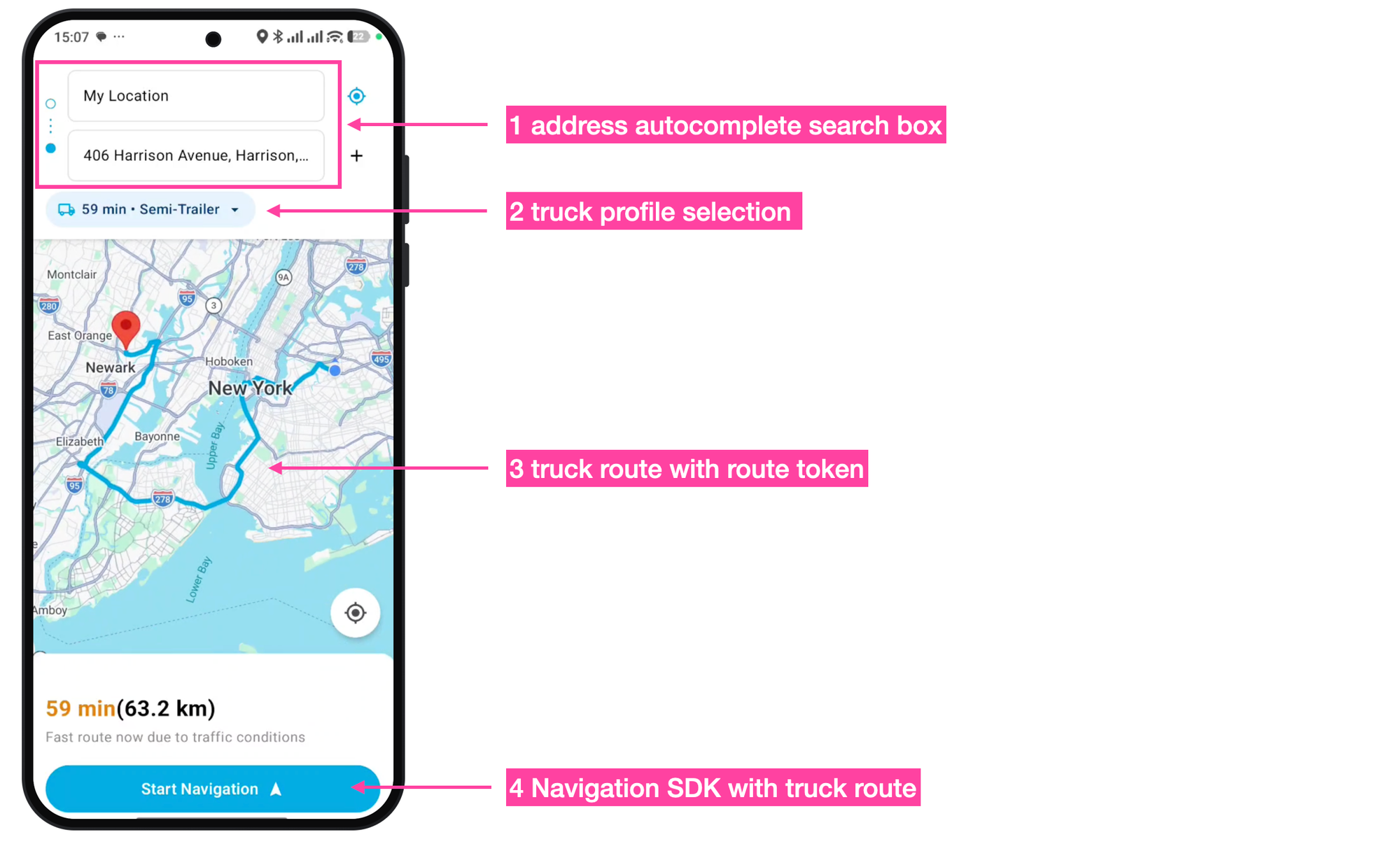
The truck GPS app we'll build looks very similar to the consumer Google Maps app. Here's how it works:
- Choose a destination. The driver searches for an address using a place autocomplete search box. The origin is always set to the driver’s current location.
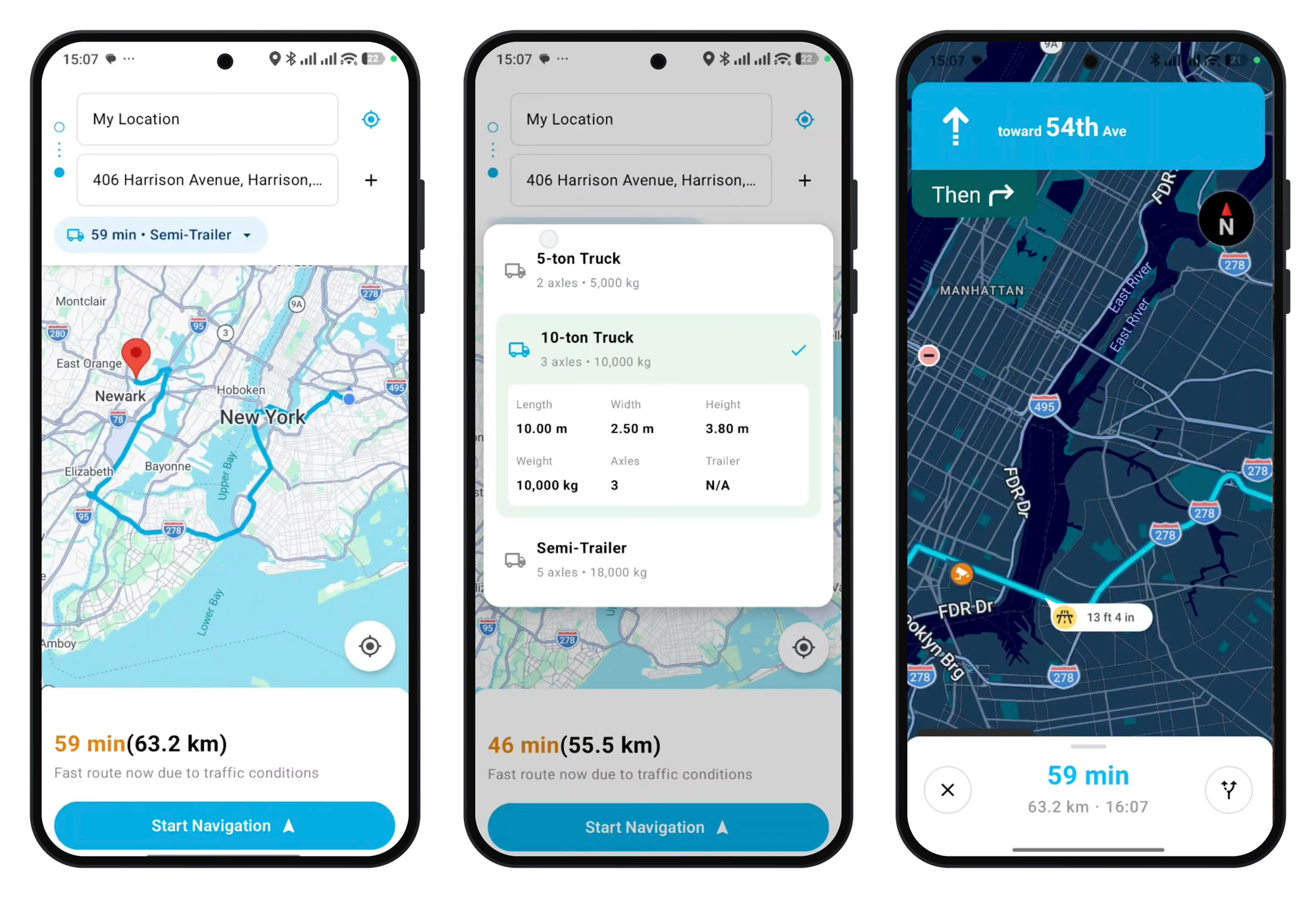
- Choose a truck profile. The options are a 5-ton truck, a 10-ton truck, or a semi-trailer. Large Vehicle Routing uses the profile’s dimensions, weight, and axle count to find a route that vehicle can drive safely.
- Get the route. The app sends the request to a backend server, which calls the Routes API with Large Vehicle Routing enabled and draws the returned route on the map. The response includes a route token, which lets the Navigation SDK follow that exact route.
- Start navigating. Tapping [Start Navigation] opens turn by turn directions in the Navigation SDK with the truck route preloaded. If the driver leaves the planned route, the Navigation SDK calculates a new one that still respects the truck’s restrictions.
The app has two parts. The Android app handles the map, destination search, vehicle selection, and turn by turn guidance. The Node.js backend calls the Routes API which returns the route token that starts truck safe navigation in the turn by turn directions module.
Selecting a destination with a Place Autocomplete search box
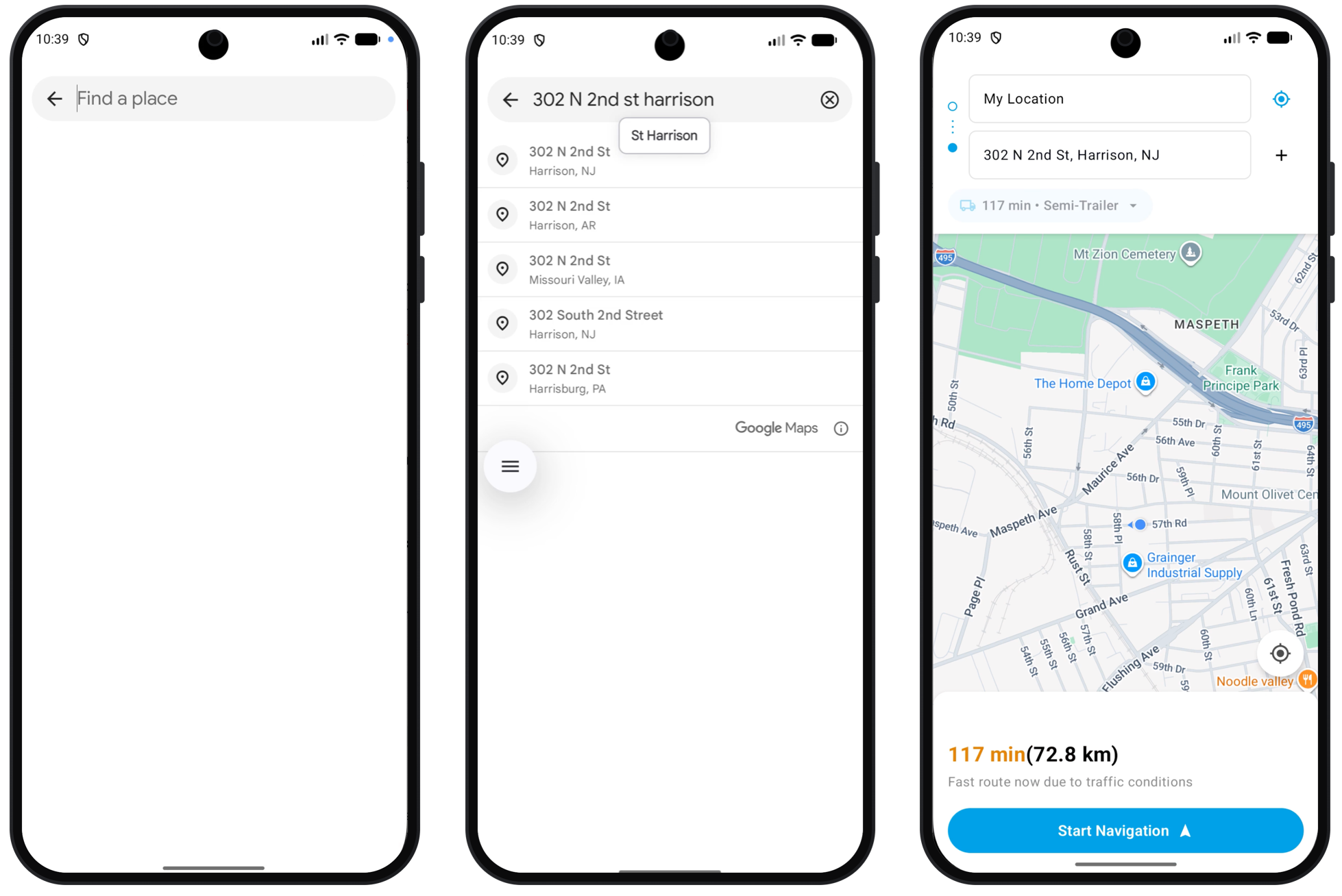
Tapping the destination field opens Google’s Place Autocomplete widget, an out of the box address search screen from the Places SDK for Android. Here’s how the its added to the app:
The launcher in registers to receive the widget’s result
In Android, a launcher is an object that opens another screen and returns that screen’s result to your code. In a typical app, each full screen is usually an Activity. The Place Autocomplete widget (PlaceAutocompleteActivity), provided by the Places SDK, in one of these. The truck GPS app opens it, the driver picks an address, the widget closes, and the result has to get back to the app. The launcher handles that round trip.
In PlaceAutocompleteLauncher.kt, the launcher is created with rememberLauncherForActivityResult which registers the callback and returns the launcher.
/*** lvrnavigation/screens/planner/components/PlaceAutocompleteLaunch er.kt ***/
@Composable
fun rememberPlaceAutocompleteLauncher(
    onPlaceSelected: (PlaceSuggestion) -> Unit,
    onError: () -> Unit,
): PlaceAutocompleteLauncher {
    val context = LocalContext.current
    val activityLauncher =
        rememberLauncherForActivityResult(
            ActivityResultContracts.StartActivityForResult(),
        ) { result ->
            when (result.resultCode) {
                PlaceAutocompleteActivity.RESULT_OK -> {
                    val pickedPlace = readPickedPlace(result.data)
                    if (pickedPlace != null) onPlaceSelected(pickedPlace)
                }
                PlaceAutocompleteActivity.RESULT_ERROR -> onError()
                else -> Unit // The user backed out without picking a place.
            }
        }
    return remember(context, activityLauncher) {
        PlaceAutocompleteLauncher(context, activityLauncher)
    }
}
Autocomplete widget opens, ranking places near the driver first
Tapping the destination field opens a search screen where the driver types an address and picks from Google’s suggestions.
/*** lvrnavigation/screens/planner/components/PlaceAutocompleteLaunch er.kt ***/
class PlaceAutocompleteLauncher(
    private val context: Context,
    private val activityLauncher: ActivityResultLauncher<Intent>,
) {
    fun launch(near: LatLng?) {
        val intent = PlaceAutocomplete.createIntent(context) {
            if (near != null) {
                setLocationBias(CircularBounds.newInstance(near, 50_000.0))
            }
        }
        activityLauncher.launch(intent)
    }
}
The user selects a destination
The readPickedPlace() function reads the driver’s choice from the result and returns the three pieces the app needs and packages them into a PlaceSuggestion.
/*** lvrnavigation/screens/planner/components/PlaceAutocompleteLaunch er.kt ***/
private fun readPickedPlace(data: Intent?): PlaceSuggestion? {
    if (data == null) return null
    val prediction = PlaceAutocomplete.getPredictionFromIntent(data) ?: return null
    return PlaceSuggestion(
        placeId = prediction.placeId,
        fullText = prediction.getFullText(null).toString(),
        sessionToken = PlaceAutocomplete.getSessionTokenFromIntent(data),
    )
}
This is the object passed to onSuggestionSelected() in PlannerViewModel.kt. The ViewModel shows fullText (e.g. "302 N 2nd St, Harrison, NJ") in the destination field before calling PlaceRepository.getPlaceLatLng(placeId, sessionToken), to requests the address coordinates and close the billing session. These coordinates are used as the destination when calling the Routes API.
Choosing a vehicle type from the truck profile picker
The vehicle picker has four parts: the truck data, the button that opens the picker, the picker itself, and the PlannerViewModel logic that runs when the driver chooses a truck.
Truck data VehiclePreset.kt
Each truck is an entry in a Kotlin enum, with its dimensions stored in millimetres and kilograms:
/*** lvrnavigation/data/models/VehiclePreset.kt ***/

enum class VehiclePreset(
    val title: String,
    val axleCount: Int,
    val lengthMm: Int,
    val widthMm: Int,
    val heightMm: Int,
    val weightKg: Int,
    val trailerLengthMm: Int?,
) {
    FIVE_TON_TRUCK(
        title = "5-ton Truck",
        axleCount = 2,
        lengthMm = 8_000,
        widthMm = 2_500,
        heightMm = 3_500,
        weightKg = 5_000,
        trailerLengthMm = null,
    ),
    TEN_TON_TRUCK(
        title = "10-ton Truck",
        axleCount = 3,
        lengthMm = 10_000,
        widthMm = 2_500,
        heightMm = 3_800,
        weightKg = 10_000,
        trailerLengthMm = null,
    ),
    SEMI_TRAILER(
        title = "Semi-Trailer",
        axleCount = 5,
        lengthMm = 16_500,
        widthMm = 2_600,
        heightMm = 4_000,
        weightKg = 18_000,
        trailerLengthMm = 13_600,
    )

    // Rest of VehiclePreset.kt
}
The picker lists the trucks by reading the enum directly. VehicleSelectorOverlay loops over VehiclePreset.entries, which Kotlin generates automatically for every enum and which contains all its values in the order they’re declared e.g.
/*** lvrnavigation/screens/planner/components/VehicleSelectorOverlay.kt ***/
VehiclePreset.entries.forEach { vehicle ->
    VehicleItem(
        vehicle = vehicle,
        isSelected = vehicle == selectedVehicle,
        onClick = { onSelectVehicle(vehicle) },
    )
}
Opening the picker: the vehicle pill in TopRouteHeader.kt

Below the origin and destination fields is a rounded pill with a truck icon, the drive time, the vehicle name, and a dropdown arrow. Tapping it calls viewModel.onVehicleSelectorClick(),
/*** lvrnavigation/screens/planner/components/TopRouteHeader.kt ***/
fun onVehicleSelectorClick() {
    if (!_uiState.value.canChangeVehicle) return
    _uiState.update { it.copy(isVehicleSelectorOpen = true) }
}
which changes isVehicleSelectorOpen to "true" and draws the VehicleSelectorOverlay on top of the map.
/*** lvrnavigation/screens/planner/PlannerScreen.kt ***/
if (uiState.isVehicleSelectorOpen) {
    VehicleSelectorOverlay(
        modifier = Modifier.fillMaxSize(),
        selectedVehicle = uiState.selectedVehicle,
        onSelectVehicle = viewModel::onVehicleSelected,
        onDismiss = viewModel::onVehicleSelectorDismiss,
    )
}
In VehicleSelectorOverlay.kt, the card layout loops over every entry in the VehiclePreset.kt enum and draws one row per truck. Each row then picks one of two layouts:
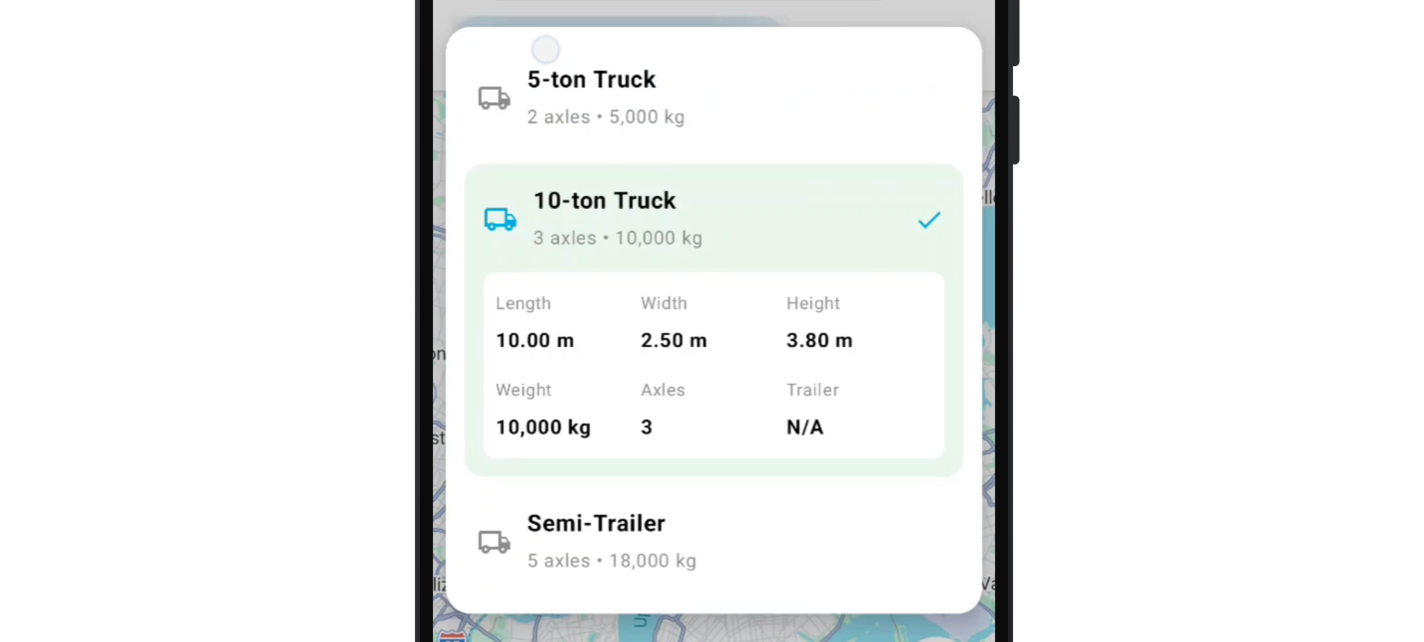
- Collapsed (not selected): a plain
Rowwith a grey truck icon, the bold title, and the grey subtitle (“2 axles • 5,000 kg”). - Expanded (selected): a light green
Surfacewith a cyan truck icon, the title and subtitle, and a checkmark on the right. Below that isVehicleSpecsGrid, a white box with two rows of threeSpecCells: length, width, and height on top, and weight, axles, and trailer underneath. Each cell is a small grey label above a bold value.
Choosing a truck: PlannerViewModel.kt
Tapping a truck calls onVehicleSelected(), which saves the new truck, closes the picker, and clears the current route. It then calls planTripIfPossible(), which requests a new route for the new truck if a destination has already been chosen. The old route has to be thrown away because it was calculated for a different truck. A route that’s safe for a 5-ton truck may go under a bridge that a semi-trailer can’t clear.
/*** lvrnavigation/screens/planner/PlannerViewModel.kt ***/
fun onVehicleSelected(vehicle: VehiclePreset) {
    val current = _uiState.value.selectedVehicle
    if (vehicle == current) {
        _uiState.update { it.copy(isVehicleSelectorOpen = false) }
        return
    }
    _uiState.update {
        it.copy(
            selectedVehicle = vehicle,
            isVehicleSelectorOpen = false,
            routePoints = null,
            routeToken = null,
            routeTokenCreatedAtMillis = 0L,
            durationText = "",
            distanceText = "",
            routeSummary = "",
            restrictionsPartiallyIgnored = false,
            isRouteLoading = false,
        )
    }
    planTripIfPossible()
}
Calling the Routes API to retrieve a truck GPS route
To get a truck safe route, the app sends the origin, destination, and truck dimensions to the backend, which calls the Routes API with travelMode: "TRUCK" and the dimensions in routeModifiers.vehicleInfo. Google returns a route that avoids restrictions such as low bridges and weight limits, along with a route token that the Navigation SDK uses to follow that exact route.
The app builds the request in PlannerViewModel.kt and RouteMapper.kt
When the driver has chosen a destination and a truck, PlannerViewModel.planTripIfPossible() combines the driver’s location, the destination, and the truck’s dimensions into a TruckRouteRequest.
/*** lvrnavigation/screens/planner/PlannerViewModel.kt ***/
fun planTripIfPossible() {
    val state = _uiState.value
    val origin = state.userLocation ?: return
    val destination = state.destination ?: return

    val request = toTruckRouteRequest(origin, destination, state.selectedVehicle)
    // ... Request is sent to backend
}
In RouteMapper.kt the origin, destination and vehicleInfo (truck dimensions from VehiclePreset.kt) are added together.
/*** lvrnavigation/screens/planner/PlannerViewModel.kt ***/
fun toTruckRouteRequest(origin: LatLng, destination: LatLng, vehicle: VehiclePreset) =
    TruckRouteRequest(
        origin = LatLngPoint(origin.latitude, origin.longitude),
        destination = LatLngPoint(destination.latitude, destination.longitude),
        vehicleInfo = vehicle.toVehicleInfo(),
    )
TruckRouteRequest is a Kotlin data class in data/models/RouteModels.kt. For a semi-trailer trip, the object toTruckRouteRequest() creates would look like this:
TruckRouteRequest(
    origin = LatLngPoint(lat = 40.7484, lng = -73.9857),
    destination = LatLngPoint(lat = 40.7395, lng = -74.1562),
    vehicleInfo = VehicleInfo(
        totalAxleCount = 5,
        totalLengthMm = 16500,
        totalWidthMm = 2600,
        totalHeightMm = 4000,
        totalWeightKg = 18000,
        trailerInfo = listOf(TrailerInfo(lengthMm = 13600)),
    ),
)
And when sent to the backend, Gson converts it to this JSON, which looks like this:
{
  "origin":      { "lat": 40.7484, "lng": -73.9857 },
  "destination": { "lat": 40.7395, "lng": -74.1562 },
  "vehicleInfo": {
    "totalAxleCount": 5,
    "totalLengthMm": 16500,
    "totalWidthMm": 2600,
    "totalHeightMm": 4000,
    "totalWeightKg": 18000,
    "trailerInfo": [ { "lengthMm": 13600 } ]
  }
}
The backend server.js calls the Routes API.
The server calls computeRoutes with travelMode: "TRUCK" and the vehicle’s dimensions in routeModifiers.vehicleInfo, which turns on Large Vehicle Routing.
/*** server.js ***/
const response = await fetch(
  'https://routes.googleapis.com/directions/v2:computeRoutes',
  {
    method: 'POST',
    headers: {
      ...authHeaders,
      'Content-Type': 'application/json',
      'X-Goog-FieldMask':
        'routes.routeToken,routes.distanceMeters,routes.duration,' +
        'routes.polyline.encodedPolyline,routes.description,' +
        'routes.travelAdvisory.routeRestrictionsPartiallyIgnored',
    },
    body: JSON.stringify({
      origin:      { location: { latLng: { latitude: origin.lat, longitude: origin.lng } } },
      destination: { location: { latLng: { latitude: destination.lat, longitude: destination.lng } } },
      travelMode: 'TRUCK',
      routingPreference: 'TRAFFIC_AWARE_OPTIMAL',
      polylineEncoding: 'ENCODED_POLYLINE',
      routeModifiers: { vehicleInfo },
    }),
  },
);
The JSON returned to the Android app looks like this:
{
  "origin":      { "lat": 40.7484, "lng": -73.9857 },
  "destination": { "lat": 40.7395, "lng": -74.1562 },
  "vehicleInfo": { "totalAxleCount": 3, "totalLengthMm": 10000, "totalWidthMm": 2500, "totalHeightMm": 3800, "totalWeightKg": 10000 },
  "routeToken": "CqMBCjoKCgjSu...",
  "distanceMeters": 55500,
  "duration": "2760s",
  "durationSeconds": 2760,
  "summary": "I-95 S",
  "polyline": "ocvwFbqobM...",
  "restrictionsPartiallyIgnored": false
}
The Android app PlannerMapView.kt draws the route.
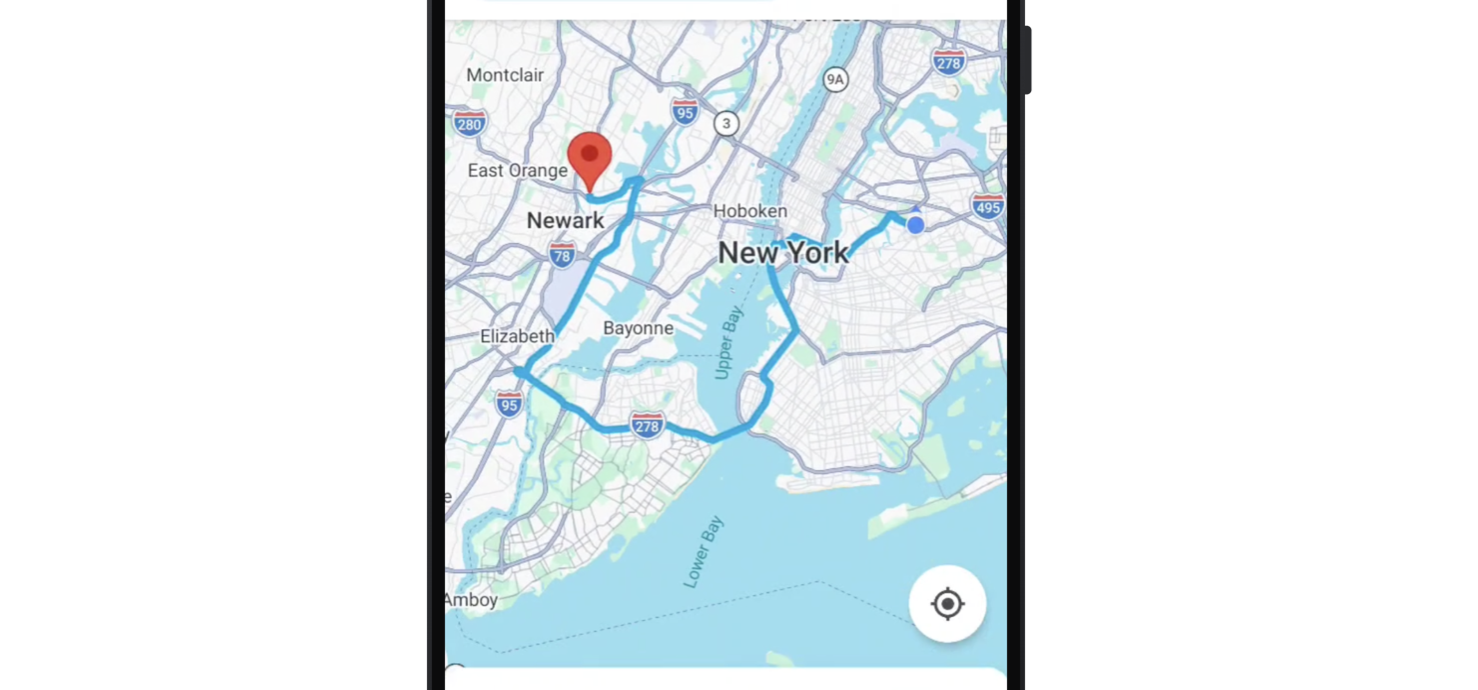
In RouteMapper.kt, the TruckRouteResponse.toUiState() function decodes the polyline into map points and returns an updated PlannerUiState containing those points and the route token.
/*** lvrnavigation/screens/planner/mappers/RouteMapper.kt ***/
fun TruckRouteResponse.toUiState(state: PlannerUiState): PlannerUiState =
    state.copy(
        destination = destination.toLatLng(),
        destinationText = state.destinationText,
        routePoints = PolylineUtil.decode(polyline).takeIf { it.isNotEmpty() },
        routeToken = routeToken,
        durationText = formatEta(durationSeconds),
        distanceText = TextFormatter.formatDistance(distanceMeters),
        routeSummary = summary,
        restrictionsPartiallyIgnored = restrictionsPartiallyIgnored,
        isRouteLoading = false,
        errorMessage = null,
    )
PlannerViewModel.kt then saves it as the screen’s new state, while
/*** lvrnavigation/screens/planner/PlannerViewModel.kt ***/
is GetResult.Value -> {
    // ...
    val route = result.value
    _uiState.update {
        route.toUiState(it).copy(
            routeTokenCreatedAtMillis = System.currentTimeMillis(),
        )
    }
    deliverPendingNavigation()
}
PlannerMapView.kt draws the points as a line and zooms the map to fit the route.
/*** lvrnavigation/screens/planner/components/PlannerMapView.kt ***/
GoogleMap(cameraPositionState = cameraPositionState, /* ... */) {
    destination?.let { Marker(state = rememberUpdatedMarkerState(position = it)) }
    routePoints?.let { points ->
        Polyline(points = points, color = RouteColor, width = ROUTE_WIDTH_PX)
    }
}

LaunchedEffect(routePoints) {
    val bounds = createSquareBounds(listOf(origin) + routePoints)
    cameraPositionState.animate(CameraUpdateFactory.newLatLngBounds(bounds, 200))
}
Using a route token to start truck GPS turn by turn directions with the Navigation SDK

In the previous section, we saw that when the backend returns a route, PlannerViewModel saves the routeToken in PlannerUiState. When the driver taps [Start Navigation], onStartNavigationReady() checks that the route is ready to use: a route token exists, the route has finished loading, and the app’s daily route quota hasn’t been used up.
/*** lvrnavigation/screens/planner/PlannerViewModel.kt ***/
fun onStartNavigationReady(onReady: (token: String, lat: Double, lng: Double) -> Unit) {
    val state = _uiState.value
    val token = state.routeToken
    if (token == null) {
        _messages.value = NO_ROUTE_MESSAGE              // "Plan a route before starting navigation."
        return
    }
    if (state.isRouteLoading) {
        _messages.value = ROUTE_STILL_LOADING_MESSAGE   // "Still calculating your route."
        return
    }
    if (state.quotaExceeded) {
        _messages.value = state.quotaMessage ?: QUOTA_EXCEEDED_FALLBACK
        return
    }
    if (!state.hasUsableRouteToken) {                   // older than 5 minutes
        pendingNavigation = onReady                     // remember the tap
        planTripIfPossible()                            // fetch a fresh token
        _messages.value = REFRESHING_TOKEN_MESSAGE      // "Route expired — recalculating."
        return
    }
    val destination = state.destination ?: run {
        _messages.value = NO_ROUTE_MESSAGE
        return
    }
    onReady(token, destination.latitude, destination.longitude)
}
If everything checks out, it opens the in-app navigation screen and passes along the route token (which is bundled inside the route object).
/*** lvrnavigation/screens/navigation/NavigationViewModel.kt ***/
fun startNavigation(route: ActiveRoute) {
    viewModelScope.launch {
        runCatching { guidance.acquire() }
            .onFailure { error ->
                guidance.emitFailure(navigatorFailureMessage(error))
                return@launch
            }

        runCatching { startGuidance.start(route) } // Hands the token to the Nav SDK
            .fold(
                onSuccess = { result ->
                    when (result) {
                        StartResult.Started -> {
                            guidance.awaitRouteData()
                            guidance.markGuidanceStarted()
                        }
                        is StartResult.Failed -> guidance.emitFailure(result.message)
                    }
                },
                onFailure = { error -> guidance.emitFailure(navigatorFailureMessage(error)) },
            )
    }
}
Finally, in useStartGuidance.kt, the token is explicitly used by the Navigation SDK to generate the truck safe route.
/*** app/src/main/java/com/example/lvrnavigation/screens/navigation/facades/UseStartGuidance.kt ***/
suspend fun start(route: ActiveRoute): StartResult {
    val navigator = navigatorProvider.awaitNavigator()

    val destinationWaypoint =
        Waypoint.builder()
            .setLatLng(route.destinationLat, route.destinationLng)
            .setTitle(DESTINATION_TITLE)
            .setPreferSameSideOfRoad(true)
            .setVehicleStopover(true)
            .build()

    val customRoutesOptions =
        CustomRoutesOptions.builder()
            .setRouteToken(route.routeToken)
            .setTravelMode(CustomRoutesOptions.TravelMode.DRIVING)
            .build()

    //... Additional NAV SDK callbacks
}
The Navigation SDK automatically displays visual warnings, called route callouts, on the map to alert drivers to upcoming truck restrictions.
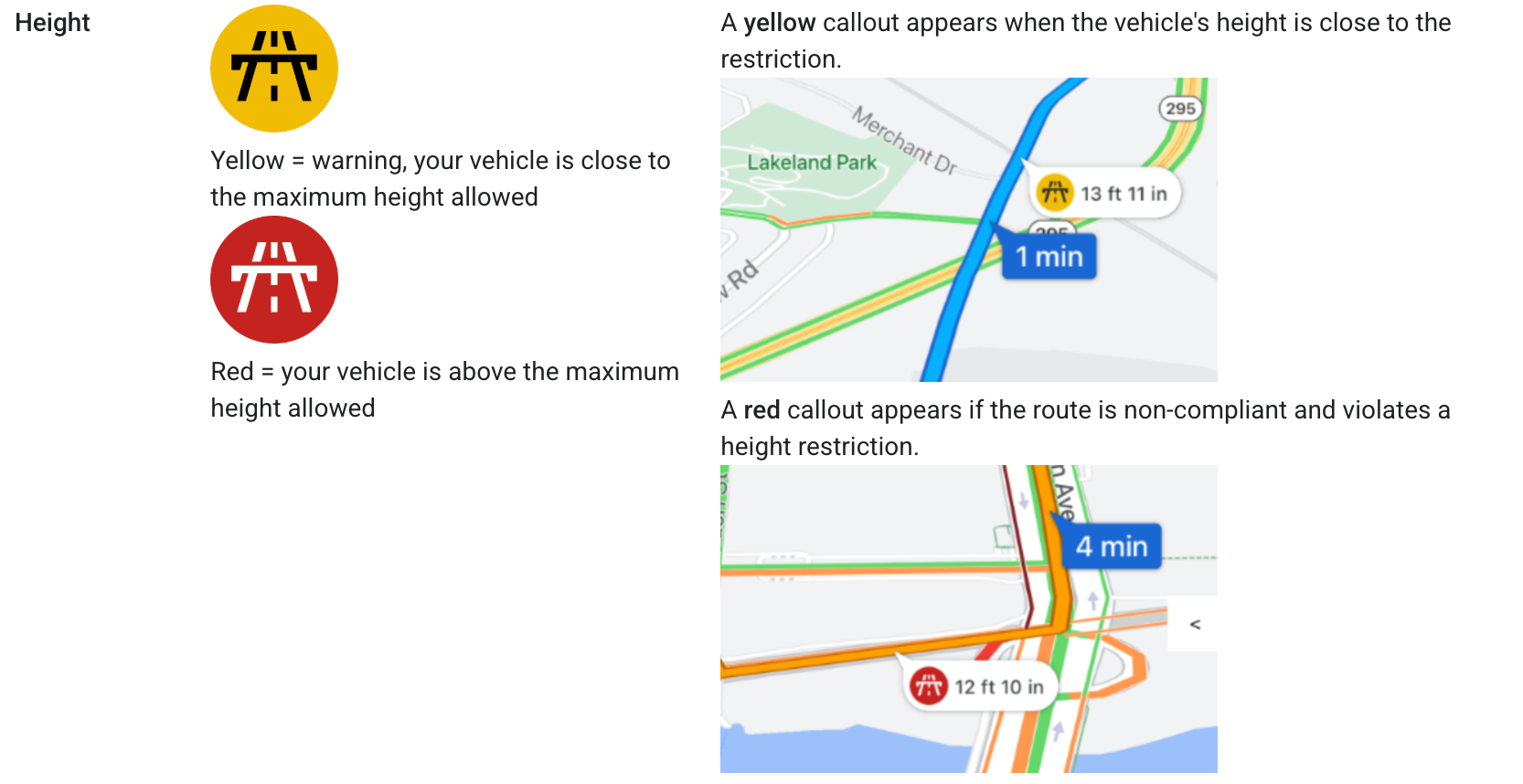
Callouts appear for restrictions that occur along the planned route, but don't display on other nearby roads. Here’s a video of the truck GPS app in action:
The Truck GPS app
Some last thoughts on Large Vehicle Routing for Google Maps
This is the final post in my series on Large Vehicle Routing. Earlier, I showed how to optimize routes for large vehicles and how to create a Google Maps truck route. In this post, I showed how to build a truck GPS app that plans a valid truck route and guides the driver along it, turn by turn.
Large Vehicle Routing is unusual among Google Maps Platform features. It isn’t a standalone API. It’s a capability shared by three products, each covering a different stage of a truck driver's day:
- Route Optimization plans the work. It decides which truck handles which stops, and in what order, based on each vehicle’s size and weight.
- The Routes API plans each trip. It finds a route that avoids low bridges, weight limits, and other restrictions, and returns a route token that captures that exact route.
- The Navigation SDK gets the driver there. It follows the route token with turn-by-turn directions and reroutes around missed turns and traffic without losing the truck’s restrictions.
Used together, these three products cover the full trucking workflow, from planning a day of deliveries to guiding the driver through each one. Fleets have traditionally relied on specialist truck navigation providers for this. Large Vehicle Routing gives developers a way to build it on Google Maps instead, which makes trucking a significant new market for the platform.
It's still early days for Large Vehicle Routing. Although adoption has been good, it's still too early to say if it will take market share from established truck routing providers . It’s also currently available only in the contiguous United States (and experimentally in Japan), and you need to work with a Google Maps Partner (choose us!) to get it enabled on your account. If you’re a fleet operator or a developer building for one, now is a good time to start playing with it. If you’d like to try the app from this post, or need help adding Large Vehicle Routing to your own product, get in touch.
Part 1: GMPRO docs: Google Large Vehicle Routing
Part 2: Create a Google Maps truck route with the Routes API
Part 3: Build a truck GPS app with Google Maps
This article was written by Afi Labs, a Google Maps Premier Partner and reseller. We build route optimization, navigation, and fleet tracking software on Google Maps, and offer volume pricing on GMP licensing. Talk to an engineer or follow Afian on LinkedIn.